Live Stack Integration
Night Summary can capture and display live-stacked images from the Live Stack plugin in your report. This shows you what your camera actually captured during the session — not just the sky survey thumbnail.
Requirements
- Live Stack plugin must be installed in NINA
- Live Stack must be running during your imaging session (it auto-stacks frames as they arrive)
- The Show Live Stack Images setting must be enabled (on by default)
No configuration is needed in Live Stack itself — Night Summary captures images automatically via NINA’s message broker.
How It Works
- When a session starts, Night Summary subscribes to Live Stack’s broadcast messages
- Every time Live Stack processes a new frame, it broadcasts the current stacked image
- Night Summary captures and compresses the latest image for each target and filter
- When the session ends, the most recent stacked image for each target/filter is included in the report
Images are compressed to JPEG as they arrive (typically 150-300 KB each), so memory usage stays reasonable even across a full night.
Display Layout
The layout depends on your camera type:
Color Cameras (OSC / One-Shot Color)
A single full-width color composite image is shown for each target:
[DSS Sky Thumbnail]     [Altitude Chart]
[Live Stack — full width color composite       ]
  "Live Stack · 47 frames · 1h 34m"
[Filter Table]
Monochrome Cameras
Per-filter grayscale images are shown side by side, plus a color composite if one was created in Live Stack:
[DSS Sky Thumbnail]     [Altitude Chart]
[  H stack  ]  [  S stack  ]  [  O stack  ]
 "H · 47 · 1h 34m"  "S · 38 · 1h 16m"  "O · 12 · 1h 0m"
[SHO Composite — full width                   ]
  "Live Stack Composite · R:47 G:38 B:12 · 3h 50m"
[Filter Table]
- Up to 4 filters per row; wraps to a second row for 5+ filters
- Each image is labeled with the filter name, frame count, and total integration time
- The color composite is always shown below the per-filter images when available
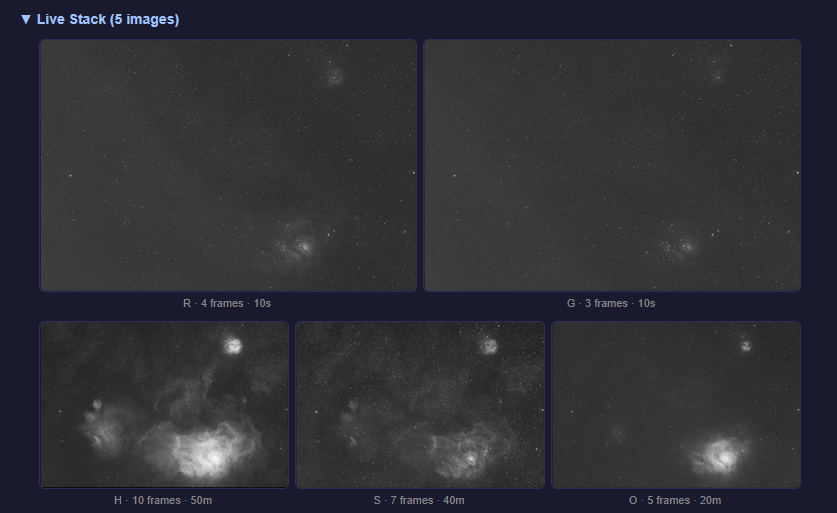
Image Sizing
- Per-filter images scale to fill the available width divided by the number of filters (with gaps)
- Color composites are capped at 520px wide, centered in the report
- All images preserve their native aspect ratio from your camera sensor
- Images are captured at their native resolution and compressed to JPEG quality 75 (re-encoded at quality 60 if the result exceeds 500 KB)
When Live Stack Images Don’t Appear
If you don’t see live stack images in your report:
- Live Stack wasn’t running — it must be actively stacking during the session. Starting it after the session begins will capture images from that point forward.
- Live Stack wasn’t installed — the setting is greyed out in Options if the plugin isn’t detected
- The setting is disabled — check that Show Live Stack Images is enabled in Night Summary settings
- No frames were stacked — if Live Stack received no frames for a target (e.g., it was started after that target finished), no image appears for that target
Resending Reports with Live Stack
When resending a previous report, Night Summary looks for saved live stack master images in the report’s save directory. These are persisted alongside the HTML file when saving locally. If the originals aren’t available (e.g., local save was disabled for that session), the resent report won’t include live stack images.