Target Scheduler Integration
Night Summary integrates with the Target Scheduler plugin to show acquisition progress and planning data. All Target Scheduler features are optional — they silently skip when Target Scheduler isn’t installed.
Progress Bars
Available at Standard and Full detail levels.
For each target, Night Summary shows per-filter progress bars comparing your actual acquisition against Target Scheduler’s plan:
- Accepted (solid accent color) — frames that passed Target Scheduler’s image grading criteria
- Acquired (lighter color) — frames captured but not yet accepted (pending grading, or rejected)
- Desired (full bar width) — the total number of frames Target Scheduler is aiming for
Each bar is labeled with counts like “12 / 15 accepted, 14 acquired” so you can see at a glance how close you are to completing each filter’s plan.
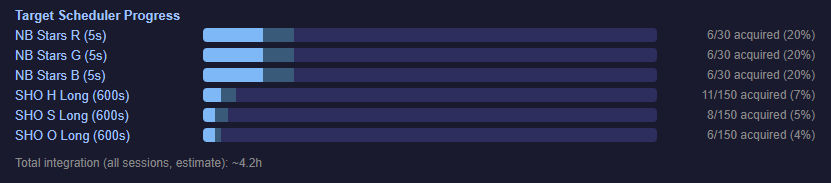
Below the per-filter bars, a cumulative integration time summary shows the total accepted exposure time for the target.
Grading Sync
At the end of each session, Night Summary syncs accepted frame counts from Target Scheduler’s database so the progress bars accurately reflect TS grading decisions, even if grading happened after image capture.
Minimum Altitude Line
Available at Standard and Full detail levels. Requires altitude charts to be enabled.
When Target Scheduler is installed, the altitude chart for each target can show a dotted red line at the project’s minimum altitude setting. This helps you see when a target dipped below your usable altitude threshold.
The minimum altitude value comes from your Target Scheduler project settings. Toggle this with the Show Min Altitude checkbox in Night Summary settings.
Tonight’s Preview
Available at Full detail level only. Requires the Target Scheduler API to be enabled.
Shows what Target Scheduler plans to image tonight — including target names, planned filter sequences, and estimated exposure counts. This section appears at the bottom of the report and helps you review the upcoming session.
Enabling the Target Scheduler API
The preview section requires Target Scheduler’s API to be running:
- In NINA, open Target Scheduler (or the relevant plugin panel)
- Go to Target Management
- Select your active profile
- Click the gear icon to open settings
- Navigate to API Preferences
- Enable the API
Enabling the TS API will increase report generation time because Target Scheduler needs to compute the full night plan. This is a one-time computation per report.
If the API is not enabled, the Tonight’s Preview section is simply omitted from the report — no error is shown.
When Target Scheduler Is Not Installed
- All TS-related settings are greyed out in Night Summary options with a red message: “Target Scheduler is not installed — these options are unavailable”
- TS progress bars, minimum altitude lines, and tonight’s preview are silently skipped in reports
- No error messages or toast notifications appear — the report generates normally with the remaining sections
- Night Summary does not require Target Scheduler to function; all TS features are additive