Delivery Channels
Night Summary can deliver your report through four channels. You can enable any combination — they all run in parallel when the session ends.
Sends the full HTML report as an email. The report renders inline in most email clients (Gmail, Outlook, Apple Mail).
Gmail Setup
- In Night Summary settings, enable Email Reports and select Gmail
- Enter your Gmail address
- Generate a Gmail App Password:
- Go to myaccount.google.com
- Navigate to Security > App Passwords (you must have 2-Factor Authentication enabled)
- Create a new app password for “Mail”
- Copy the 16-character password
- Paste the app password into the App Password field
- Enter the Recipient Email Address (can be the same as your Gmail address, or any other address)
- Click Send Test Email to verify
Do NOT use your regular Gmail password. Google requires an App Password for third-party SMTP access. If you don’t see the App Passwords option, enable 2-Factor Authentication first.
Other Email Providers
Select Other provider to configure any SMTP-capable email service:
- Enter your Sender Email, App Password / API Key, and Recipient Email Address
- Configure the SMTP server settings:
| Provider | SMTP Server | Port | TLS |
|---|---|---|---|
| Outlook.com | smtp-mail.outlook.com | 587 | On |
| Yahoo | smtp.mail.yahoo.com | 587 | On |
| iCloud | smtp.mail.me.com | 587 | On |
All major providers require an App Password or API key — not your regular account password. Check your provider’s security settings to generate one.
Discord
Posts a summary message with key stats to a Discord channel via webhook. The message includes an embedded summary plus the full HTML report attached as a file.
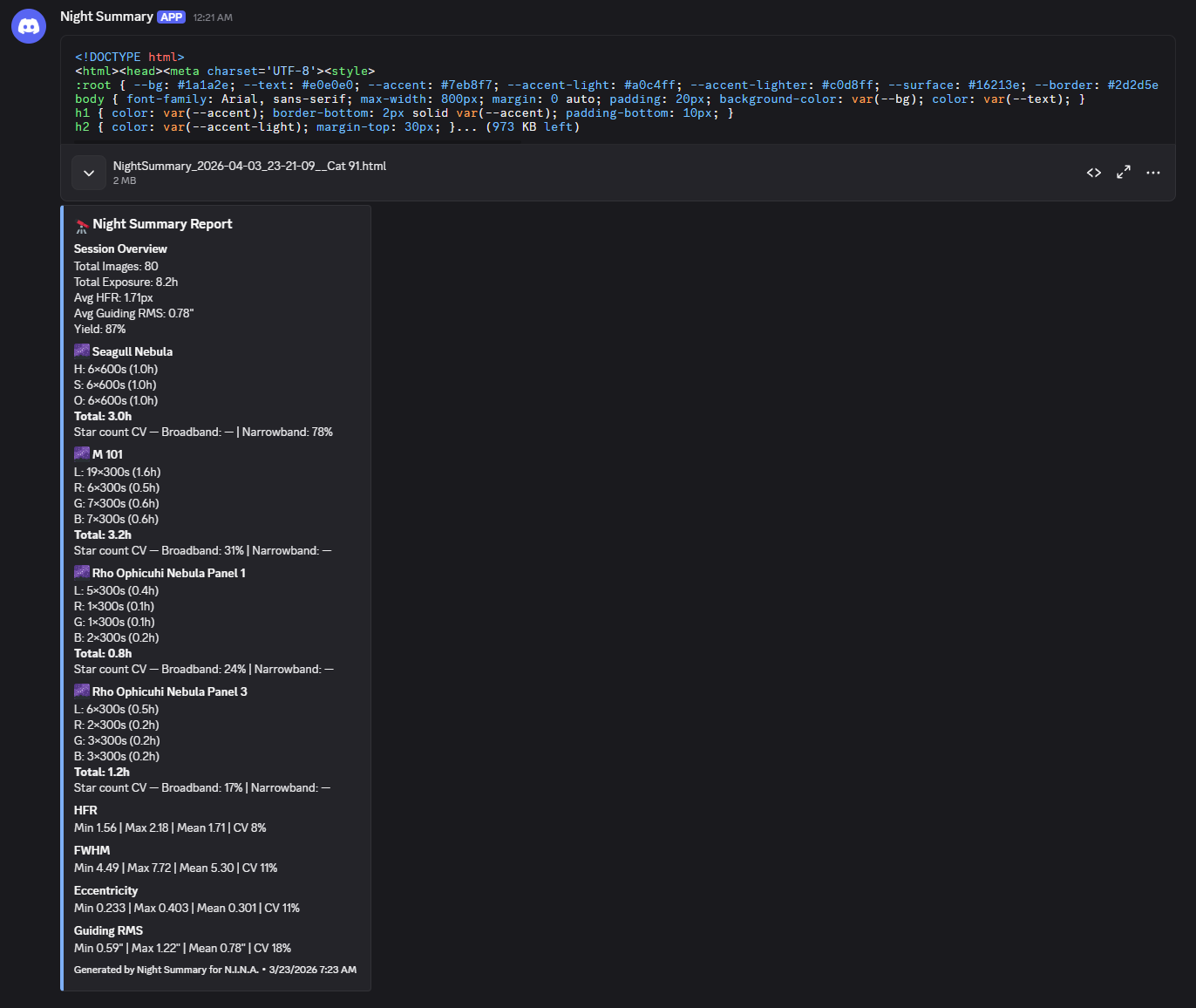
Setup
- In your Discord server, go to the channel where you want reports
- Click the gear icon (Edit Channel) > Integrations
- Click Create Webhook, give it a name (e.g., “Night Summary”), and copy the webhook URL
- In Night Summary settings, enable Discord and paste the Webhook URL
- Click Send Test Message to verify
Pushover
Sends a push notification to your phone with key session stats (total images, exposure time, targets). Good for a quick heads-up that your session completed.
Setup
- Install the Pushover app on your phone (iOS / Android)
- Create an account at pushover.net
- Create a new application at pushover.net/apps/build — name it “Night Summary” or similar
- Copy your App Token (from the application page) and User Key (from your Pushover dashboard)
- In Night Summary settings, enable Pushover and paste both keys
- Click Send Test Notification to verify
Local File Save
Saves the HTML report as a file on your computer. Useful for archiving or viewing reports in a browser.
Setup
- Enable Save Report Locally
- Optionally set a Save Path — leave blank to use the default:
Documents\N.I.N.A.\Night Summary\Saved Reports\ - Configure the File name pattern if you want custom naming (see File Naming Patterns)
Reports are saved as .html files inside a session-specific subfolder. You can open them in any web browser.
Delivery Timing
All enabled channels are triggered simultaneously when your sequence ends. If one channel fails (e.g., network issue with Discord), the others still deliver independently. Check NINA’s notification area for success/failure messages.
Test Buttons
Each channel has a Send Test button in settings. These send a simple test message to verify your credentials and connection are working.
There’s also a Send Test Report section at the bottom of settings that generates and sends a full report using test data through all enabled channels at once.