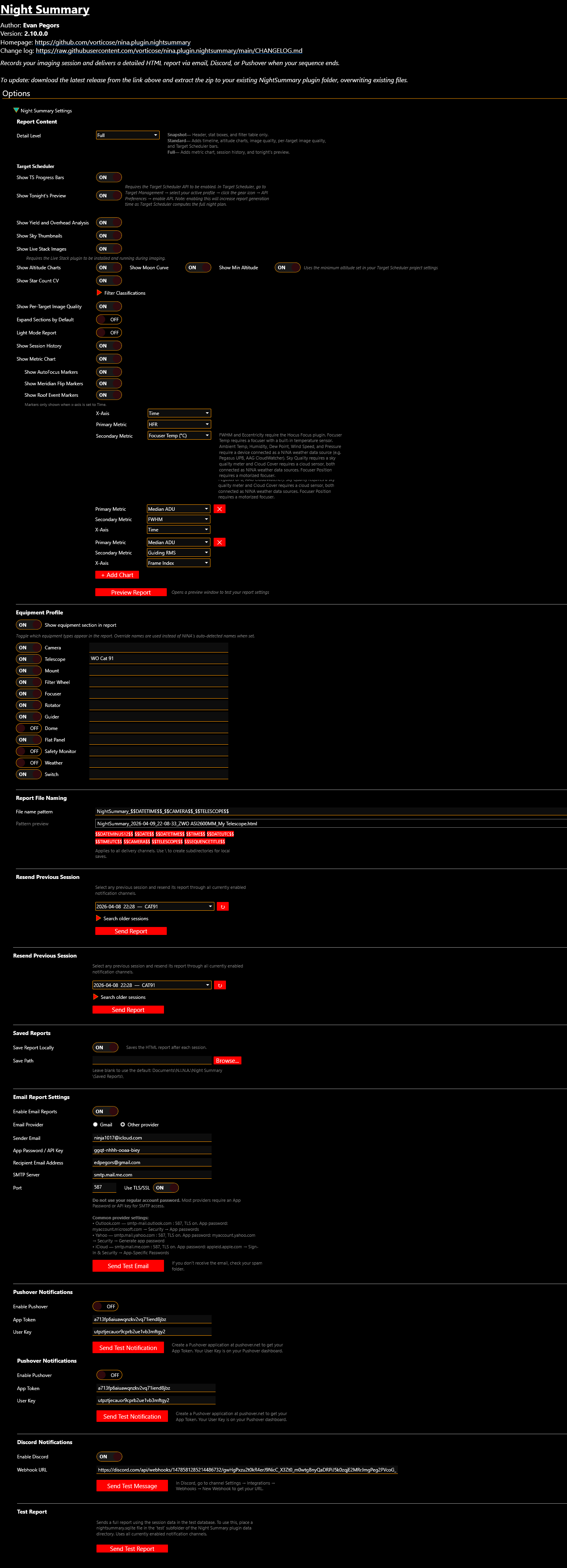
All Night Summary settings are found under Options > Night Summary Settings in NINA. Settings persist to a JSON file in the plugin data directory, so they survive NINA updates and plugin reinstalls.
Report Content
Detail Level
Controls how much information appears in the report.
Adds yield and overhead analysis, metric charts, session history, and tonight’s preview
Yes
Target Scheduler Options
These options are only available when Target Scheduler is installed.
Setting
Default
Detail Level
Description
Show TS Progress Bars
On
Standard+
Per-filter acquisition progress bars showing accepted vs. acquired frames
Show Tonight’s Preview
On
Full
What Target Scheduler plans to image tonight. Requires the TS API to be enabled.
To enable the Target Scheduler API: in Target Scheduler, go to Target Management > select your active profile > gear icon > API Preferences > enable API. This will increase report generation time as Target Scheduler computes the full night plan.
Report Display Toggles
Setting
Default
Detail Level
Description
Show Yield and Overhead Analysis
On
Full
Yield and imaging overhead breakdown parsed from NINA logs
Show Sky Thumbnails
On
All
CDS HiPS2FITS sky survey images with FOV overlay for each target
Show Live Stack Images
On
All
Live-stacked thumbnails from the Live Stack plugin
Show Altitude Charts
On
Standard+
Per-target altitude plots with exposure markers
Show Moon Curve
On
Standard+
Moon altitude line on altitude charts (requires altitude charts on)
Show Min Altitude
On
Standard+
Target Scheduler minimum altitude line on altitude charts (requires TS)
Show Star Count CV
On
Standard+
Star count coefficient of variation with per-filter breakdown
Show Per-Target Image Quality
On
Standard+
Expandable per-filter HFR, FWHM, guiding, etc. for each target
Expand Sections by Default
Off
All
Open all collapsible report sections by default
Light Mode Report
Off
All
Use light color scheme instead of dark
Show Session History
On
Full
Cumulative integration time per target across all sessions
Show Metric Chart
On
Full
Customizable chart of session metrics
Filter Classifications
Controls how filters are classified for Star Count CV grouping. Filters are read from your NINA profile.
Classification
Description
Auto
Uses first-letter matching: L, R, G, B = broadband; H, S, O = narrowband
Broadband
Force-classify as broadband
Narrowband
Force-classify as narrowband
Exclude
Exclude from Star Count CV calculations
Click the refresh button to reload filters from your current NINA profile.
Metric Chart Settings
Available at Full detail level when the metric chart is enabled. See Metric Charts for details.
Setting
Default
Description
X-Axis
Time
What the horizontal axis represents
Primary Metric
HFR
The main metric plotted
Secondary Metric
None
Optional second metric on a separate Y-axis
Additional Charts
(none)
Add up to 4 extra charts with independent metric selections
Show AutoFocus Markers
On
Overlay purple AF markers on the chart at each AutoFocus run (Time x-axis only)
Show Meridian Flip Markers
On
Overlay amber MF markers at meridian flip events (Time x-axis only)
Show Roof Markers
Off
Overlay green/red S/US markers at safety monitor state changes (Time x-axis only)
Equipment Profile
Controls the collapsible equipment section in the report header. See Equipment Profile.
Not a persistent setting — a utility for resending reports from past sessions through all currently enabled channels. Includes date-range search for finding older sessions.
Saved Reports
Setting
Default
Description
Save Report Locally
On
Save HTML report to disk after each session
Save Path
(blank)
Custom save directory. Default: Documents\N.I.N.A.\Night Summary\Saved Reports\
Email Report Settings
Setting
Default
Description
Enable Email Reports
Off
Master toggle for email delivery
Email Provider
Gmail
Gmail (simplified setup) or Other (custom SMTP)
Gmail Settings
Setting
Description
Gmail Address
Your Gmail email address
App Password
16-character Gmail App Password (not your regular password)
Recipient Email Address
Where to send the report
Custom SMTP Settings
Setting
Default
Description
Sender Email
Your email address
App Password / API Key
Provider-specific app password
Recipient Email Address
Where to send the report
SMTP Server
smtp.gmail.com
Your provider’s SMTP hostname
Port
587
SMTP port number
Use TLS/SSL
On
Enable TLS encryption
Pushover Notifications
Setting
Default
Description
Enable Pushover
Off
Master toggle for Pushover delivery
App Token
From your Pushover application settings
User Key
From your Pushover dashboard
Discord Notifications
Setting
Default
Description
Enable Discord
Off
Master toggle for Discord delivery
Webhook URL
Discord channel webhook URL
Test Report
Generates and sends a full report through all currently enabled channels using a test database. Night Summary ships with built-in test data so this works out of the box. If you want to test with your own data, replace the nightsummary.sqlite file in the test subfolder of the Night Summary plugin data directory.