Companion App
The Night Summary Companion is a standalone dashboard app you run on a second computer — Mac, Windows, or Linux. It keeps its own synced copy of your sessions from the machine running NINA and serves the full Night Summary dashboard independently, so you can browse your imaging history even when the NINA machine is asleep or powered off.
The sync is one-way: the Companion only pulls data from your NINA machine and never writes anything back to it.
How it works
- The Local Dashboard runs on your NINA machine (see Live Dashboard).
- You install the Companion on another computer and pair it with a one-time token.
- The Companion syncs a copy of your reports, thumbnails, and database, then serves the same dashboard from its own copy — on a schedule and whenever NINA finishes a session.
The Companion needs the Local Dashboard enabled on the NINA machine, plus network access to it — the same local network, or a VPN such as Tailscale for remote access.
Download
Grab the latest build from the Releases page and follow the steps for your OS.
Windows
- Download
NightSummaryCompanion-win-x64.zipand unzip it. - Double-click
NightSummaryCompanion.exe— it’s a single file, no install, drop it anywhere. First launch may show Windows SmartScreen (“Windows protected your PC”) — click More info → Run anyway (expected for an unsigned open-source app).
macOS
One line, no Gatekeeper prompt — open Terminal (Applications → Utilities → Terminal) and paste:
curl -fsSL https://github.com/vorticose/nina.plugin.nightsummary/releases/latest/download/install-companion-mac.sh | sh
It auto-detects Apple Silicon vs Intel, installs the app to Applications, and launches it. Because the download comes through curl rather than a browser, macOS never quarantines it — so there’s no “unidentified developer” wall and nothing else to click.
Don’t just download the
.dmgand double-click it — recent macOS quarantines browser downloads and blocks the ad-hoc-signed app, and it no longer offers the old right-click → Open bypass. Use the one-liner above. If you’d rather use the DMG: dragNightSummaryCompanion.appto Applications, then clear the download flag once in Terminal —xattr -dr com.apple.quarantine /Applications/NightSummaryCompanion.app— and open it normally. (It’s ad-hoc signed because there’s no paid Apple Developer account behind this open-source app.)
Linux
One line, no root:
curl -fsSL https://github.com/vorticose/nina.plugin.nightsummary/releases/latest/download/install-companion.sh | sh
Then launch Night Summary Companion from your applications menu. Other options: a .deb (sudo apt install ./nightsummary-companion_*.deb), a portable AppImage, or the tarball.
If the AppImage errors about
libfuse.so.2, install FUSE 2 (sudo apt install libfuse2) or run it with--appimage-extract-and-run. The.debandcurl | shpaths don’t need this.
Pairing
On first launch the Companion opens a setup wizard in your browser.
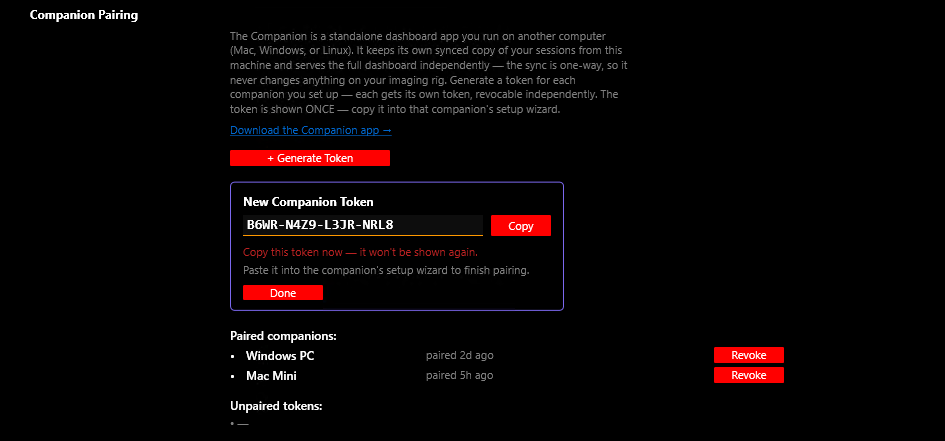
- On the NINA machine, open Options → Night Summary Settings → Local Dashboard → Companion Pairing and click + Generate Token. The token is shown once — copy it.
- In the Companion wizard’s Connect step, enter your NINA machine’s address (for example
http://astro-pc:8181). - On the Pair step, paste the token.
- The Companion runs its first sync and opens the dashboard.
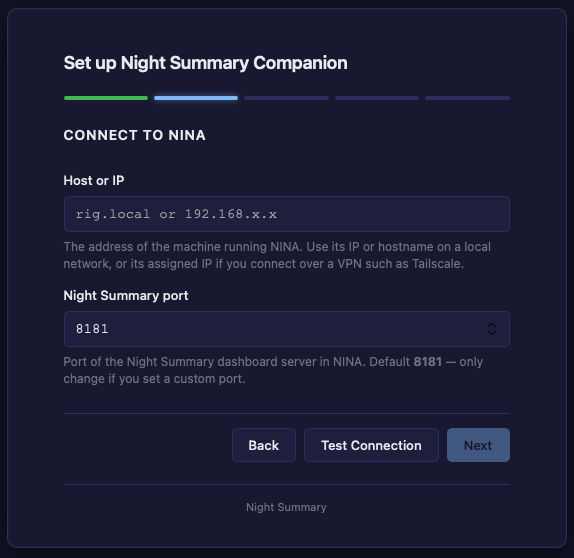
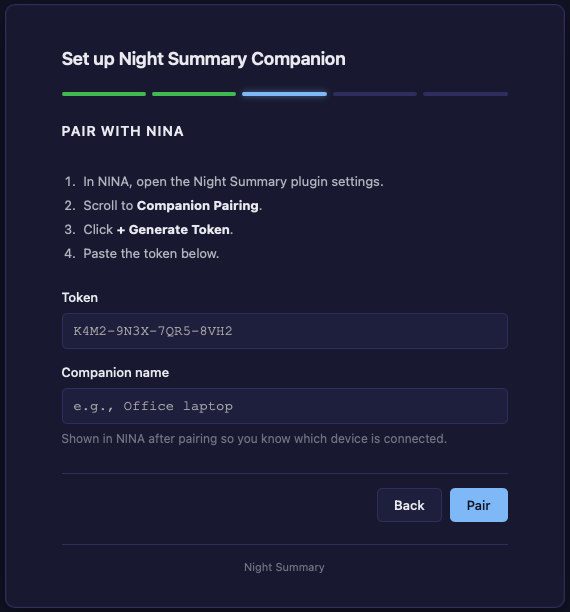
Each companion you set up gets its own token, which you can Revoke independently from the Companion Pairing panel. The paired list there updates as companions connect.
Keeping it running
- The Companion runs as a background app and reopens its dashboard in your browser whenever you launch it.
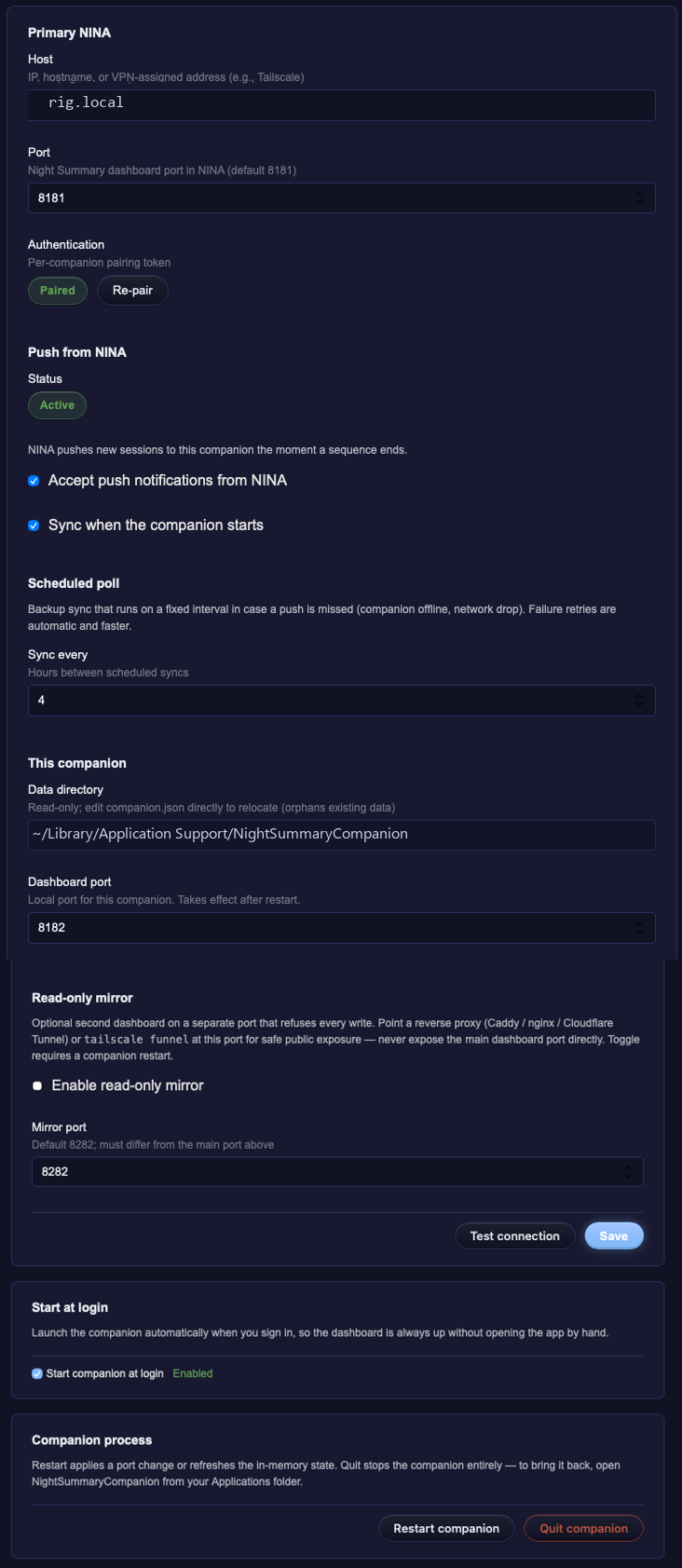
- Turn on Start at login in the Companion’s Settings tab to have it start automatically.
- Your pairing and settings survive app updates — you pair once per computer, not once per release.
Running multiple rigs
Have more than one rig running Night Summary, but want a single Companion machine (your NAS box, processing PC, etc.)? You can run one Companion instance per rig on the same computer. Each instance just needs three things of its own: a dashboard port, a data folder, and the rig it pairs with — all set in a small config file you point it at with --config.
You’ll end up with one dashboard per rig, e.g. http://localhost:8182 (rig 1) and http://localhost:8183 (rig 2), each syncing independently.
1. Pair each rig
On each rig’s NINA: Options → Night Summary Settings → Local Dashboard → Companion Pairing → + Generate Token. Copy one token per rig.
2. Create a config file per rig
Make a folder to hold them (e.g. D:\NightSummary\), and create one JSON per rig. The only things that must differ between rigs are port, dataDir, and the nina block.
rig1.json:
{
  "port": 8182,
  "dataDir": "D:/NightSummary/data-rig1",
  "nina": { "host": "rig1.local", "port": 8181, "pairingToken": "PASTE-RIG1-TOKEN" }
}
rig2.json — same shape, different port and data folder:
{
  "port": 8183,
  "dataDir": "D:/NightSummary/data-rig2",
  "nina": { "host": "rig2.local", "port": 8181, "pairingToken": "PASTE-RIG2-TOKEN" }
}
hostis the rig’s hostname or IP;nina.port(8181) is the rig’s dashboard port — leave it unless you changed it on the rig.dataDiris where that rig’s synced database, reports, and thumbnails are stored. Must be unique per rig — pointing it at a NAS share is fine.- Using the Read-Only Mirror? Add
"enableReadOnlyMirror": trueand a unique"readOnlyMirrorPort"per instance too.
3. Launch one instance per rig
Run each in its own terminal window:
Windows (from where you unzipped the Companion):
NightSummaryCompanion.exe serve --config D:\NightSummary\rig1.json
NightSummaryCompanion.exe serve --config D:\NightSummary\rig2.json
macOS:
/Applications/NightSummaryCompanion.app/Contents/MacOS/NightSummaryCompanion-bin serve --config /path/to/rig1.json
Linux:
~/.local/bin/nightsummary-companion serve --config ~/NightSummary/rig1.json
4. (Optional) Start them automatically
The in-app Start at login toggle manages a single instance, so for multiple rigs you add one startup entry per config:
- Windows — a shortcut per rig (target = the
serve --config …command) in the Startup folder (Win+R→shell:startup), or a Task Scheduler task per rig. - macOS — a
~/Library/LaunchAgents/plist per rig (uniqueLabel,ProgramArguments= the bin +serve --config /path/rigN.json), thenlaunchctl loadeach. - Linux — a
systemd --userunit per rig (~/.config/systemd/user/companion-rigN.service), thensystemctl --user enable --now companion-rigN.
There’s no single combined “all my rigs” dashboard yet — it’s one dashboard (one port) per rig. Keep each rig’s port and dataDir distinct and the instances run fully independently. Share either and the second instance will refuse to start or overwrite the first.